SearchField
Search input field with clear button and search icon
Usage
import { SearchField } from '@heroui/react';Anatomy
import {SearchField, Label, Description, FieldError} from '@heroui/react';

export default () => (
  <SearchField>
    <Label />
    <SearchField.Group>
      <SearchField.SearchIcon />
      <SearchField.Input />
      <SearchField.ClearButton />
    </SearchField.Group>
    <Description />
    <FieldError />
  </SearchField>
)
SearchField allows users to enter and clear a search query. It includes a search icon and an optional clear button for easy reset.
Examples
Variants
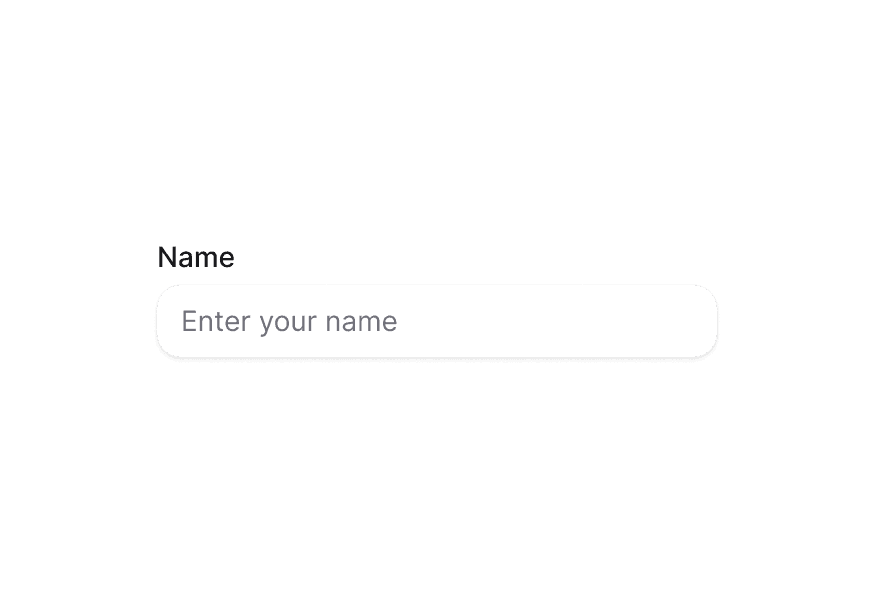
The SearchField component supports two visual variants:
primary(default) - Standard styling with shadow, suitable for most use casessecondary- Lower emphasis variant without shadow, suitable for use in Surface components
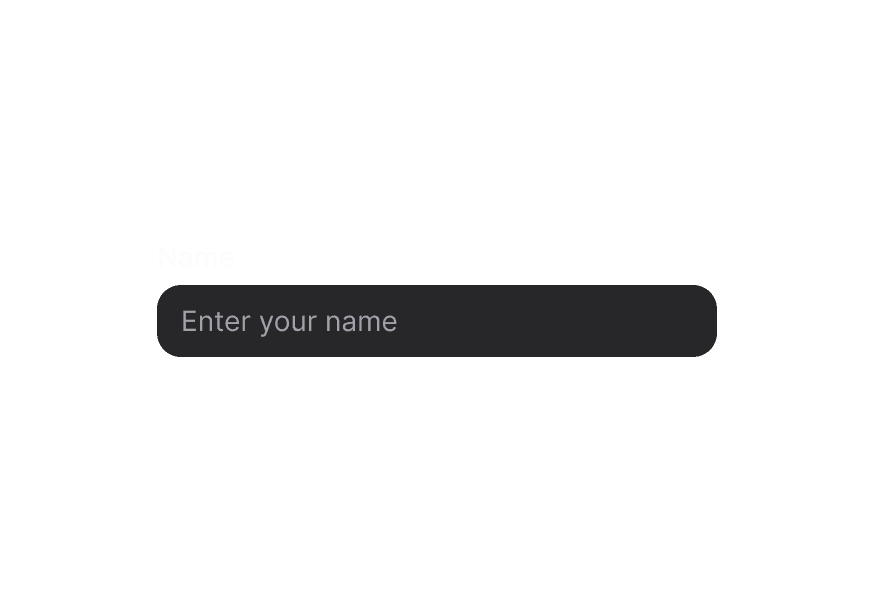
In Surface
When used inside a Surface component, use variant="secondary" to apply the lower emphasis variant suitable for surface backgrounds.
With Description
Required Field
Disabled State
Full Width
Validation
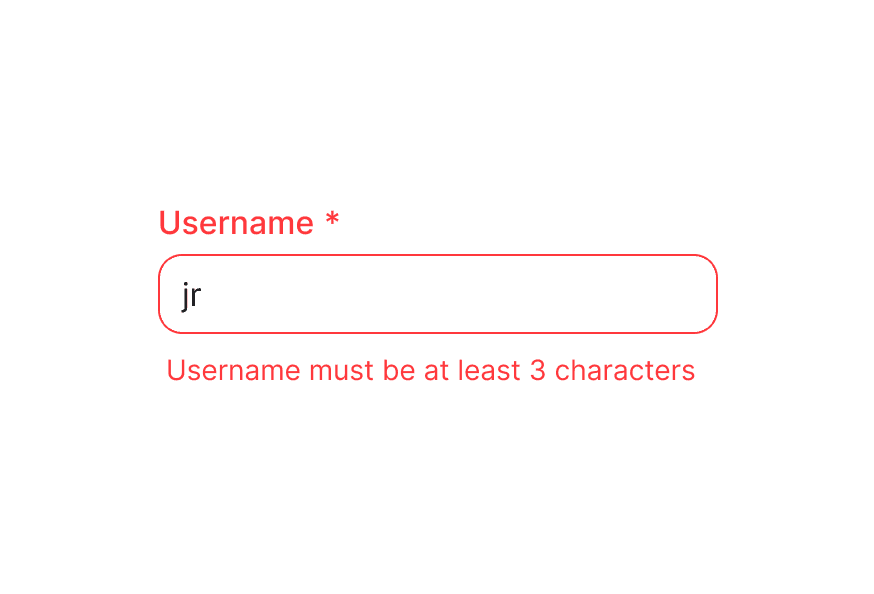
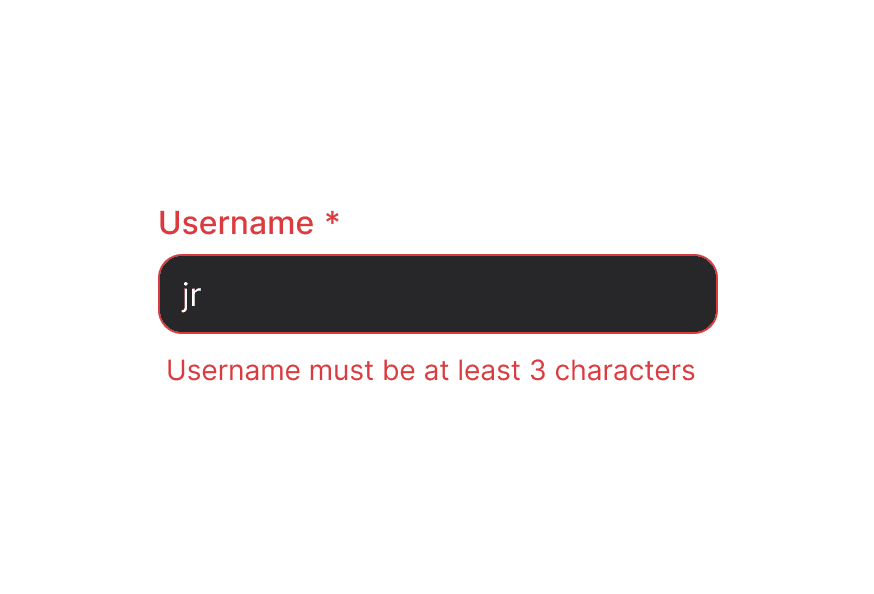
Use isInvalid together with FieldError to surface validation messages.
Controlled
Control the value to synchronize with other components or perform custom formatting.
Form Example
Complete form integration with validation and submission handling.
With Validation
Implement custom validation logic with controlled values.
Custom Icons
Customize the search icon and clear button icons.
With Keyboard Shortcut
Add keyboard shortcuts to quickly focus the search field.
Render Function
Customization
Tailwind CSS
Global CSS
SearchField uses CSS classes that can be customized. Override the component classes to match your design system.
@layer components {
  .search-field {
    @apply flex flex-col gap-1;
  }

  /* When invalid, the description is hidden automatically */
  .search-field[data-invalid],
  .search-field[aria-invalid] {
    [data-slot="description"] {
      @apply hidden;
    }
  }

  .search-field__group {
    @apply bg-field text-field-foreground shadow-field rounded-field inline-flex h-9 items-center overflow-hidden border;
  }

  .search-field__input {
    @apply flex-1 rounded-none border-0 bg-transparent px-3 py-2 shadow-none outline-none;
  }

  .search-field__search-icon {
    @apply text-field-placeholder pointer-events-none shrink-0 ml-3 mr-0 size-4;
  }

  .search-field__clear-button {
    @apply mr-1 shrink-0;
  }
}
Styling Reference
HeroUI follows the BEM methodology to ensure component variants and states are reusable and easy to customize.
CSS Classes
Base Classes
.search-field– Root container with minimal styling (flex flex-col gap-1).search-field__group– Container for search icon, input, and clear button with border and background styling.search-field__input– The search input field.search-field__search-icon– The search icon displayed on the left.search-field__clear-button– Button to clear the search field
Variant Classes
.search-field--primary– Primary variant with shadow (default).search-field--secondary– Secondary variant without shadow, suitable for use in surfaces
Note: Child components (Label, Description, FieldError) have their own CSS classes and styling. See their respective documentation for customization options.
Interactive States
SearchField automatically manages these data attributes based on its state:
- Invalid:
[data-invalid="true"]or[aria-invalid="true"]- Automatically hides the description slot when invalid - Disabled:
[data-disabled="true"]- Applied whenisDisabledis true - Focus Within:
[data-focus-within="true"]- Applied when the input is focused - Focus Visible:
[data-focus-visible="true"]- Applied when focus is visible (keyboard navigation) - Hovered:
[data-hovered="true"]- Applied when hovering over the group - Empty:
[data-empty="true"]- Applied when the field is empty (hides clear button)
Additional attributes are available through render props (see SearchFieldRenderProps below).
API Reference
SearchField
SearchField inherits all props from React Aria's SearchField component.
Base Props
| Prop | Type | Default | Description |
|---|---|---|---|
children | React.ReactNode | (values: SearchFieldRenderProps) => React.ReactNode | - | Child components (Label, Group, Input, etc.) or render function. |
className | string | (values: SearchFieldRenderProps) => string | - | CSS classes for styling, supports render props. |
style | React.CSSProperties | (values: SearchFieldRenderProps) => React.CSSProperties | - | Inline styles, supports render props. |
fullWidth | boolean | false | Whether the search field should take full width of its container |
id | string | - | The element's unique identifier. |
variant | "primary" | "secondary" | "primary" | Visual variant of the component. primary is the default style with shadow. secondary is a lower emphasis variant without shadow, suitable for use in surfaces. |
render | DOMRenderFunction<keyof React.JSX.IntrinsicElements, SearchFieldRenderProps> | - | Overrides the default DOM element with a custom render function. |
Value Props
| Prop | Type | Default | Description |
|---|---|---|---|
value | string | - | Current value (controlled). |
defaultValue | string | - | Default value (uncontrolled). |
onChange | (value: string) => void | - | Handler called when the value changes. |
Validation Props
| Prop | Type | Default | Description |
|---|---|---|---|
isRequired | boolean | false | Whether user input is required before form submission. |
isInvalid | boolean | - | Whether the value is invalid. |
validate | (value: string) => ValidationError | true | null | undefined | - | Custom validation function. |
validationBehavior | 'native' | 'aria' | 'native' | Whether to use native HTML form validation or ARIA attributes. |
validationErrors | string[] | - | Server-side validation errors. |
State Props
| Prop | Type | Default | Description |
|---|---|---|---|
isDisabled | boolean | - | Whether the input is disabled. |
isReadOnly | boolean | - | Whether the input can be selected but not changed. |
Form Props
| Prop | Type | Default | Description |
|---|---|---|---|
name | string | - | Name of the input element, for HTML form submission. |
autoFocus | boolean | - | Whether the element should receive focus on render. |
Event Props
| Prop | Type | Default | Description |
|---|---|---|---|
onSubmit | (value: string) => void | - | Handler called when the user submits the search (Enter key). |
onClear | () => void | - | Handler called when the clear button is pressed. |
Accessibility Props
| Prop | Type | Default | Description |
|---|---|---|---|
aria-label | string | - | Accessibility label when no visible label is present. |
aria-labelledby | string | - | ID of elements that label this field. |
aria-describedby | string | - | ID of elements that describe this field. |
aria-details | string | - | ID of elements with additional details. |
Composition Components
SearchField works with these separate components that should be imported and used directly:
- SearchField.Group - Container for search icon, input, and clear button
- SearchField.Input - The search input field
- SearchField.SearchIcon - The search icon displayed on the left
- SearchField.ClearButton - Button to clear the search field
- Label - Field label component from
@heroui/react - Description - Helper text component from
@heroui/react - FieldError - Validation error message from
@heroui/react
Each of these components has its own props API. Use them directly within SearchField for composition:
<SearchField isRequired isInvalid={hasError} value={value} onChange={setValue}>
  <Label>Search</Label>
  <SearchField.Group>
    <SearchField.SearchIcon />
    <SearchField.Input placeholder="Search..." />
    <SearchField.ClearButton />
  </SearchField.Group>
  <Description>Enter keywords to search</Description>
  <FieldError>Search query is required</FieldError>
</SearchField>
SearchField.Group Props
SearchField.Group inherits props from React Aria's Group component.
| Prop | Type | Default | Description |
|---|---|---|---|
children | React.ReactNode | (values: GroupRenderProps) => React.ReactNode | - | Child components (SearchIcon, Input, ClearButton) or render function. |
className | string | (values: GroupRenderProps) => string | - | CSS classes for styling. |
SearchField.Input Props
SearchField.Input inherits props from React Aria's Input component.
| Prop | Type | Default | Description |
|---|---|---|---|
className | string | - | CSS classes for styling. |
variant | "primary" | "secondary" | "primary" | Visual variant of the input. primary is the default style with shadow. secondary is a lower emphasis variant without shadow, suitable for use in surfaces. |
placeholder | string | - | Placeholder text displayed when the input is empty. |
type | string | "search" | Input type (automatically set to "search"). |
SearchField.SearchIcon Props
SearchField.SearchIcon is a custom component that renders the search icon.
| Prop | Type | Default | Description |
|---|---|---|---|
children | React.ReactNode | <IconSearch /> | Custom icon element. Defaults to search icon. |
className | string | - | CSS classes for styling. |
SearchField.ClearButton Props
SearchField.ClearButton inherits props from React Aria's Button component.
| Prop | Type | Default | Description |
|---|---|---|---|
children | React.ReactNode | <CloseButton icon /> | Icon or content for the button. Defaults to close icon. |
className | string | - | CSS classes for styling. |
slot | "clear" | "clear" | Must be set to "clear" (automatically set). |
Render Props
When using render props with className, style, or children, these values are available:
| Prop | Type | Description |
|---|---|---|
isDisabled | boolean | Whether the field is disabled. |
isInvalid | boolean | Whether the field is currently invalid. |
isReadOnly | boolean | Whether the field is read-only. |
isRequired | boolean | Whether the field is required. |
isFocused | boolean | Whether the field is currently focused (DEPRECATED - use isFocusWithin). |
isFocusWithin | boolean | Whether any child element is focused. |
isFocusVisible | boolean | Whether focus is visible (keyboard navigation). |
value | string | Current value. |
isEmpty | boolean | Whether the field is empty. |